

























Skip to content

Thursday, September 24, 11 a.m.Sphère, what's next: the new features live, with your questions.

Save my seat

Directory — One directory, the whole team in the loop.

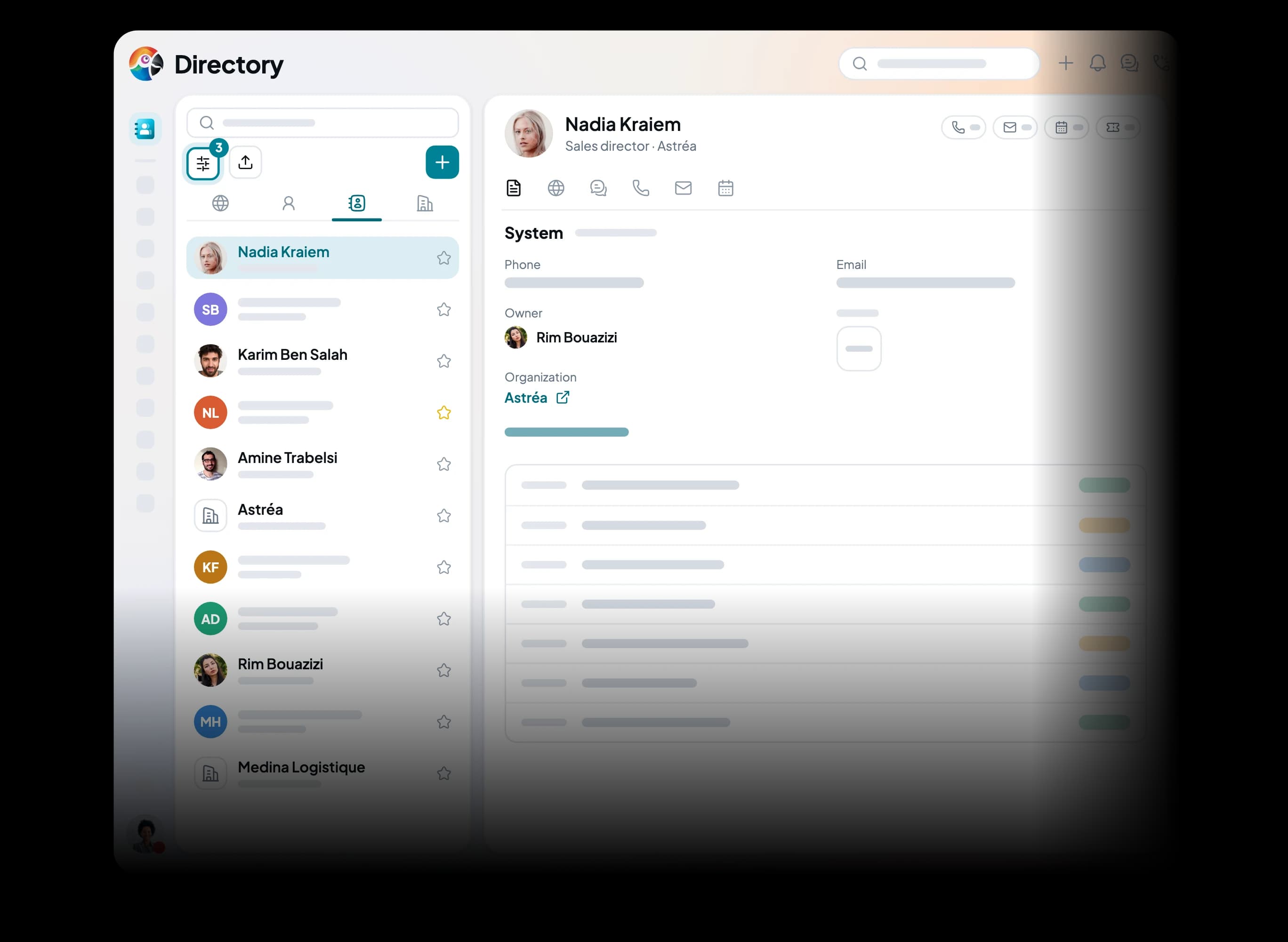
Colleagues, customers, partners and suppliers in one list, guests included. Each record keeps calls, emails, activities and tickets, so whoever answers knows where the relationship stands.

Trusted by

  • Tunisair
  • Orange
  • Ford
  • Délice Danone
  • Vistaprint
  • FedEx
  • Peugeot
  • Zara
  • Celio
  • Condor
  • Royal Air Maroc
  • Pathé

The problem

The customer already said it all. Why ask again?

Without a shared directory

  • The customer calls back and nobody knows who spoke to them last
  • Customers in a spreadsheet, colleagues in everyone's own phone
  • Three contacts at the same company, three records nothing links
  • Everyone rebuilds their own list of customers to call back
  • A file re-imported by hand, with no idea what was created or skipped

With the Directory

  • The customer calls: their name shows, one click opens their record next to the call
  • Calls, emails, activities and tickets on the same record, for the whole team
  • Each contact is linked to their company, which keeps its own record
  • A segment keeps its rule: the list updates itself, for the whole team
  • An import that says what was created, what was skipped and why

The Directory

Colleagues, customers, companies: everyone in the same place.

Teams

A call to transfer, a question to ask: you see who is free before dialling their extension, at the desk or on mobile.

Contacts

When a customer calls, their record already shows where things stand: calls, emails, activities and deals.

Companies

A company's whole history fits on one record: contacts, deals, tickets, WhatsApp messages. Whoever picks up the file has nothing to ask.

Day to day

Less time searching, more time for your customers.

Find a record, import a file, target a list, add a field, give a customer access: your team does these every day, and all of them start from the Directory, without switching tools.

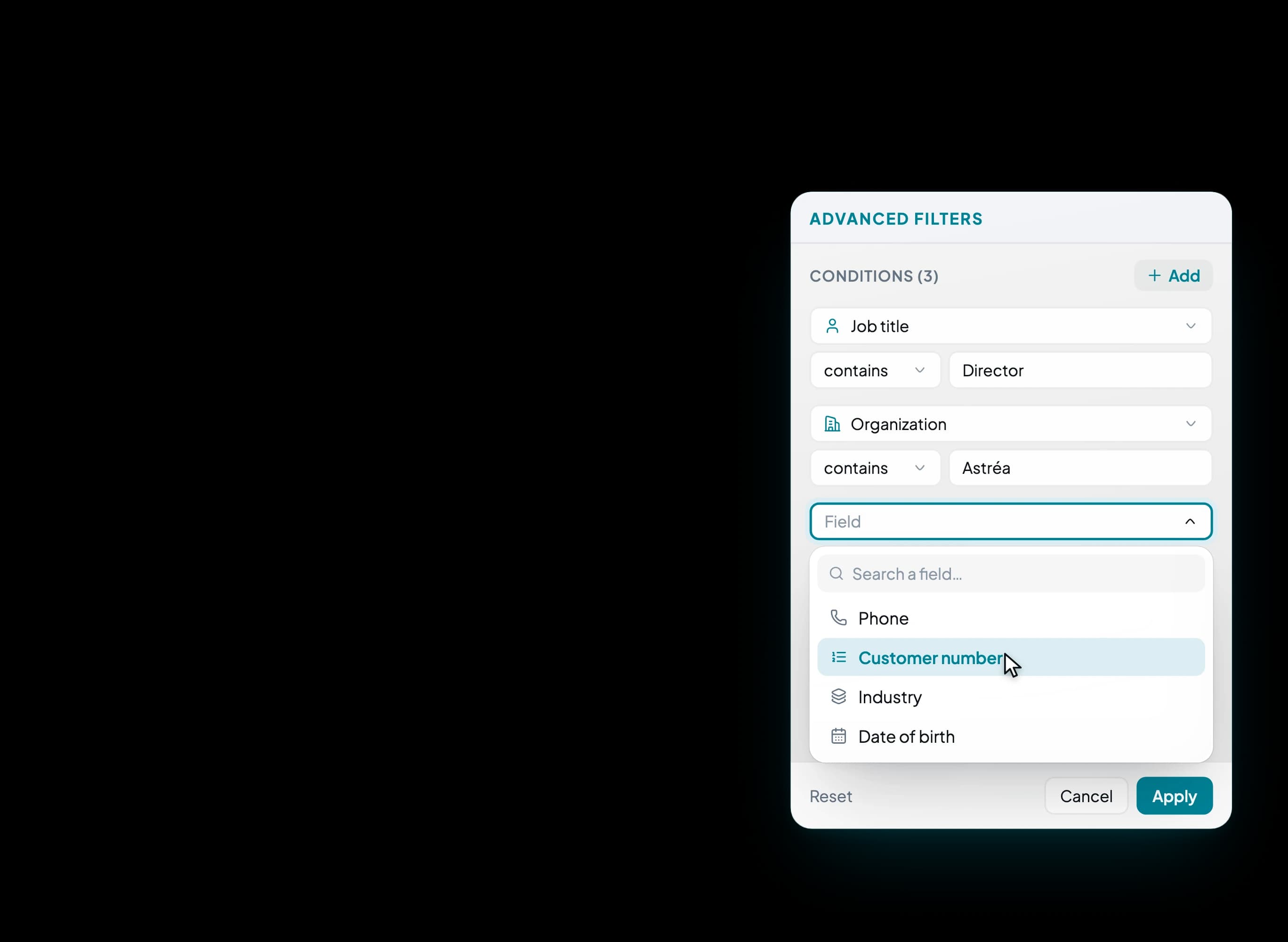
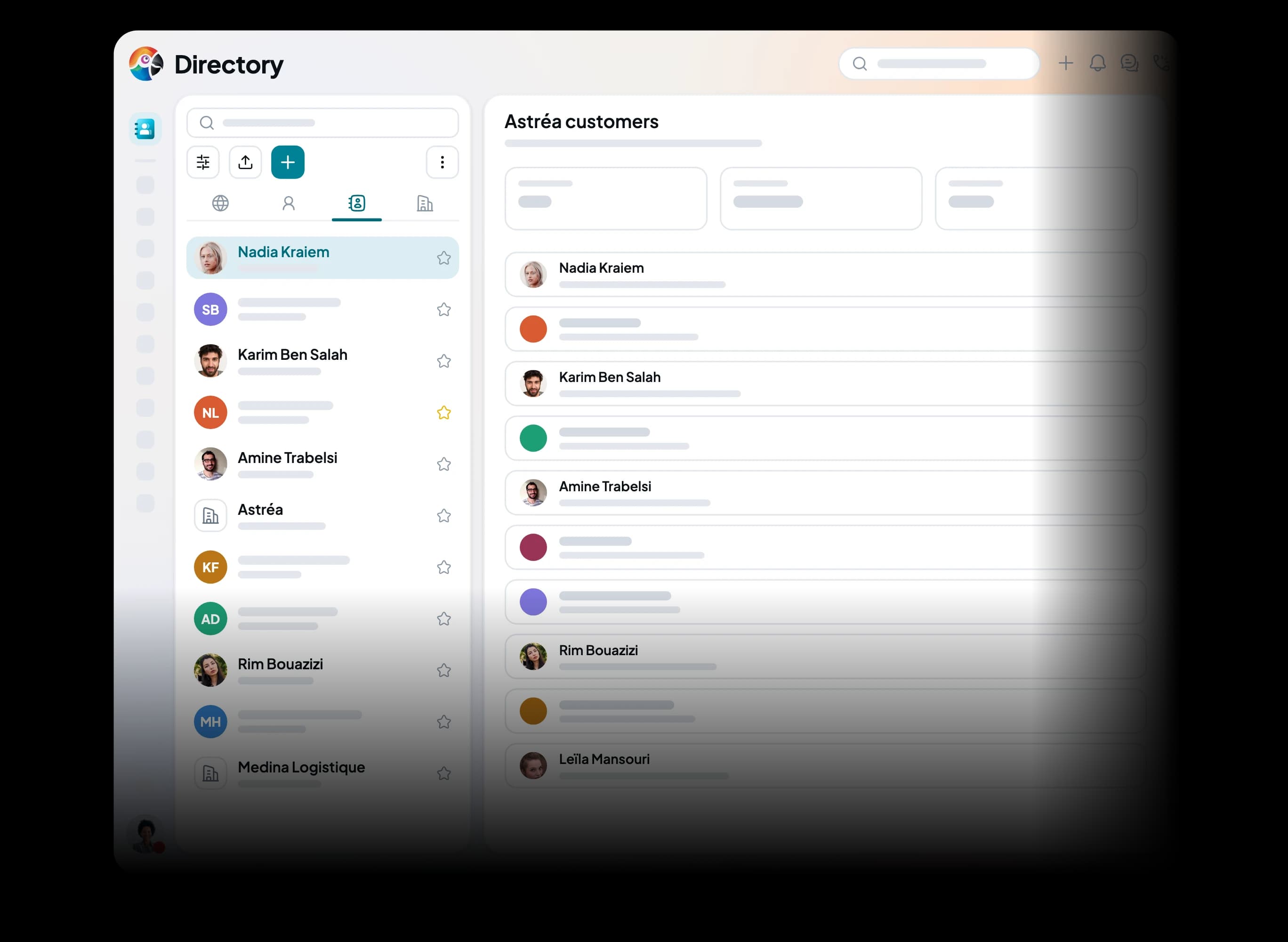
  1. The Directory, the list on the left and the advanced filters panel: two conditions set, the third opens the list of fields.

    Find

    The right customer record before they finish their first sentence.

    A customer calls: type three letters of their name, email or company, and their record opens. For a tighter list, combine filters on any field, including the ones you created, then keep the result as a saved view for the whole team.

    • Search by name, email, company
    • Filters on every field
    • Favorites always on top
    • Views shared with the team
    • Colleagues, customers and companies apart
    • A–Z index on mobile
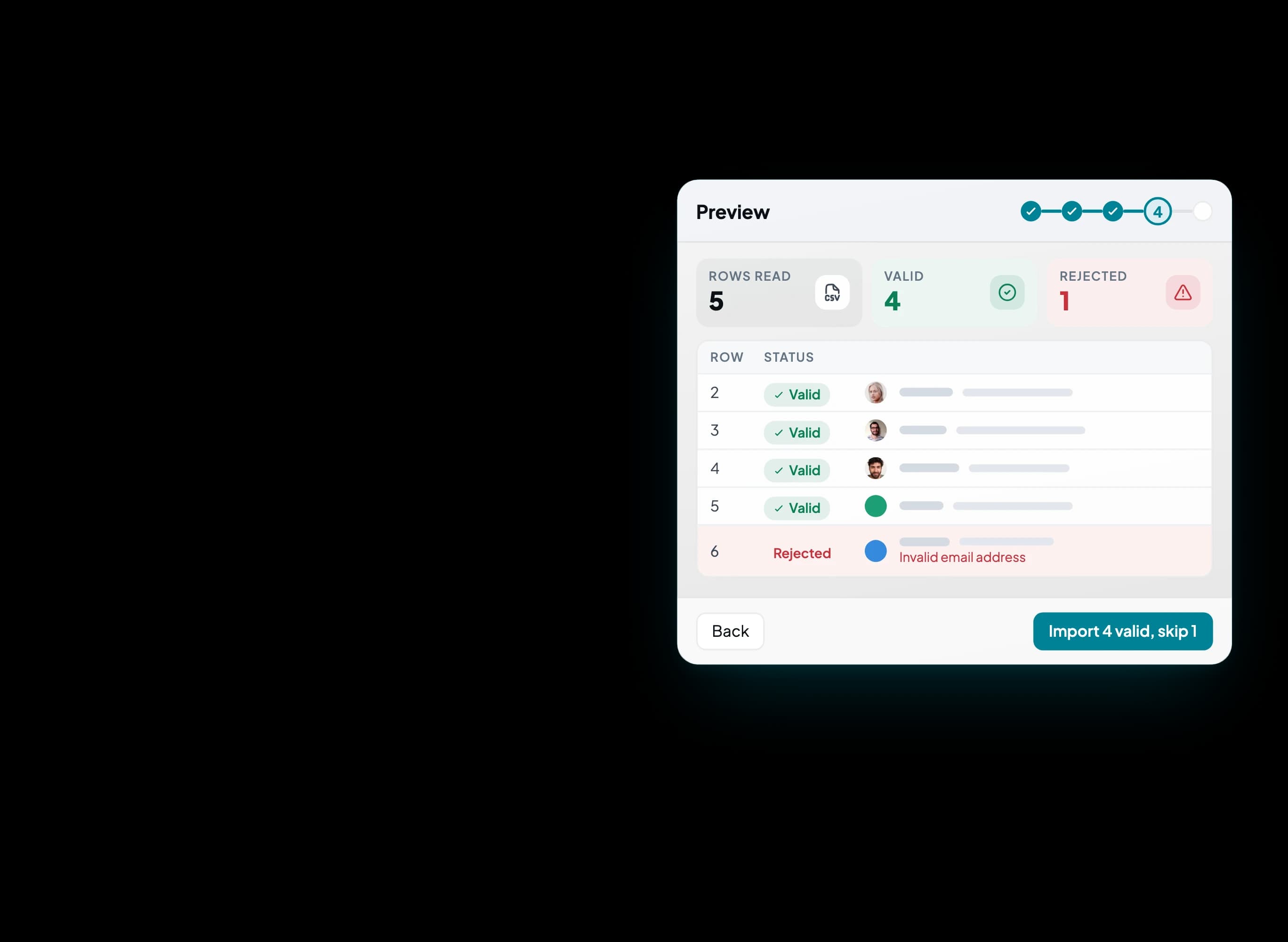
  2. The import preview: 5 rows read, 4 valid, 1 rejected for an invalid email address, and the Import 4 valid, skip 1 button.

    Import

    Your file becomes a clean directory, with no retyping.

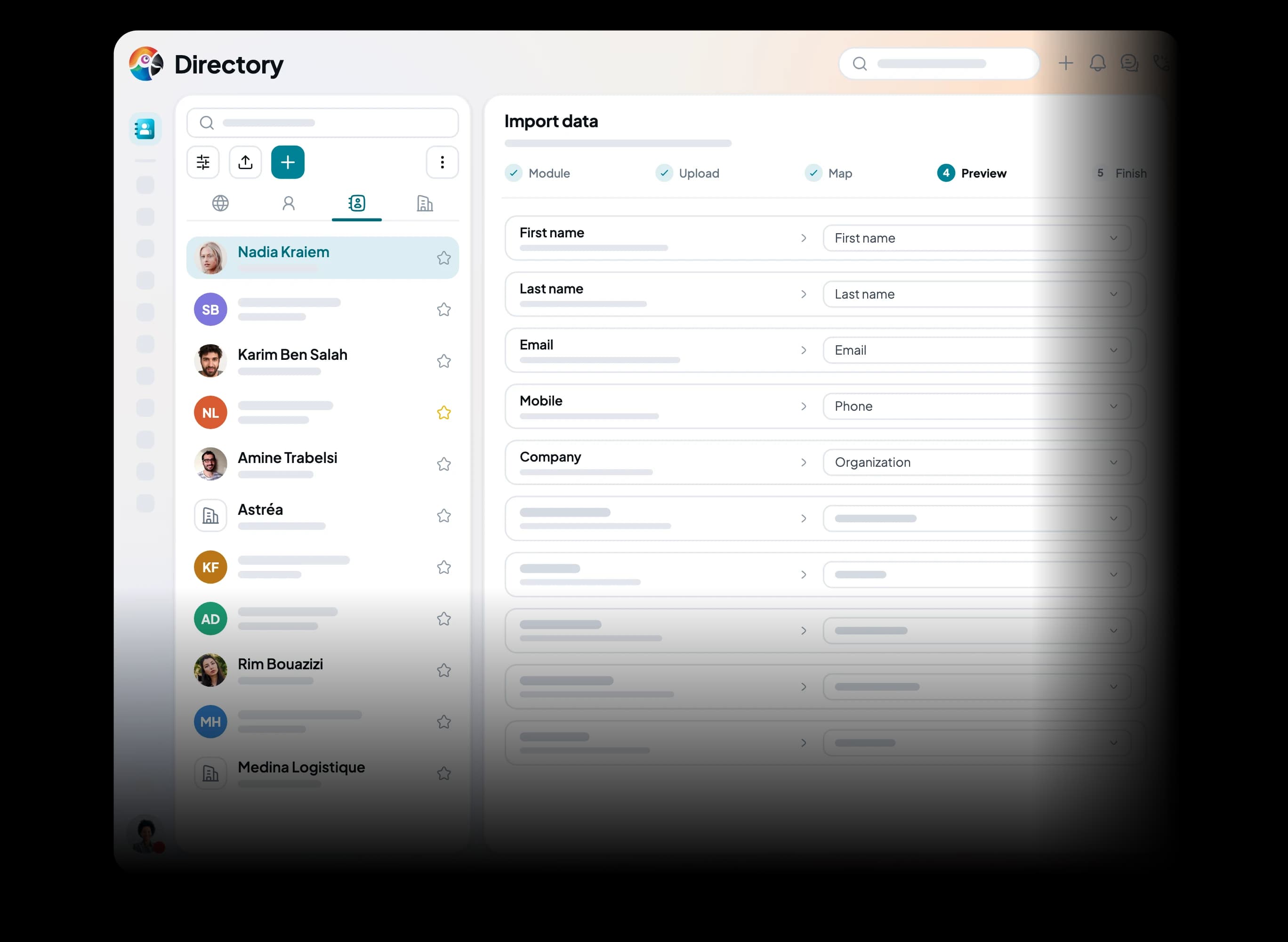
    Start from the spreadsheet you already keep, Excel or CSV. The assistant maps your columns to directory fields and shows, row by row, what will be rejected and why. Nothing goes in until you confirm. Duplicates in the file are flagged, and so are numbers already in your directory. Up to 500 rows per file.

    • Excel template provided
    • Errors flagged row by row
    • Duplicates flagged on import
    • Create, update or both
    • Organizations and call lists
    • History of every import
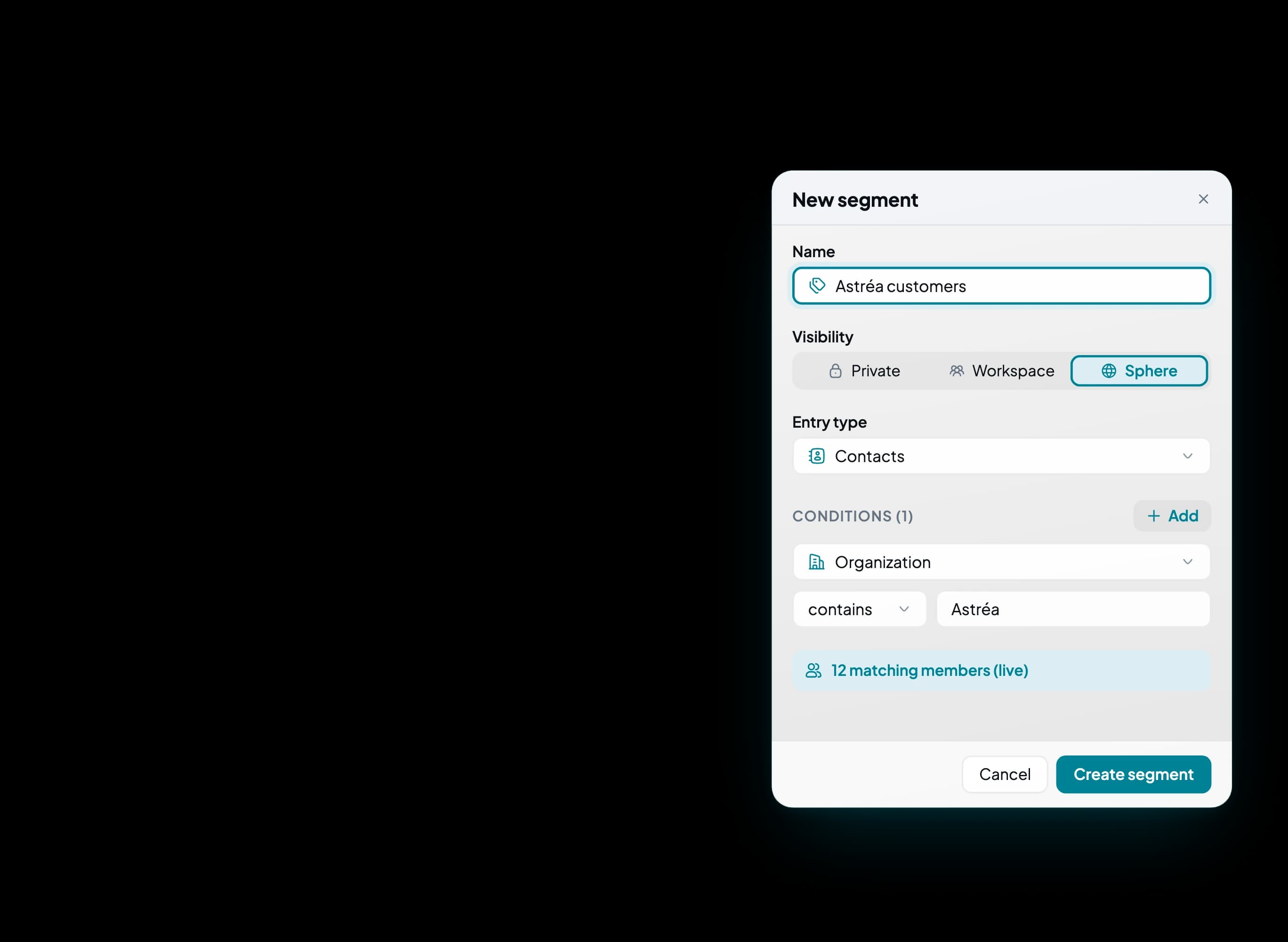
  3. The New segment panel: a name, Sphere visibility, the Contacts type, a condition on the organization and the live counter of 12 members.

    Segment

    The customers to follow up, in a list that keeps itself current.

    Describe the customers you care about once: the segment recomputes its members every time it opens, and the counter shows while you build it. For a snapshot at a given date, a frozen list keeps the selection as it was. Export it to CSV, or turn it into a campaign call list with the Contact center.

    • Recomputed on every open
    • Live counter
    • Frozen list at a date
    • Private, Workspace or Sphere
    • CSV export
    • Campaign call list
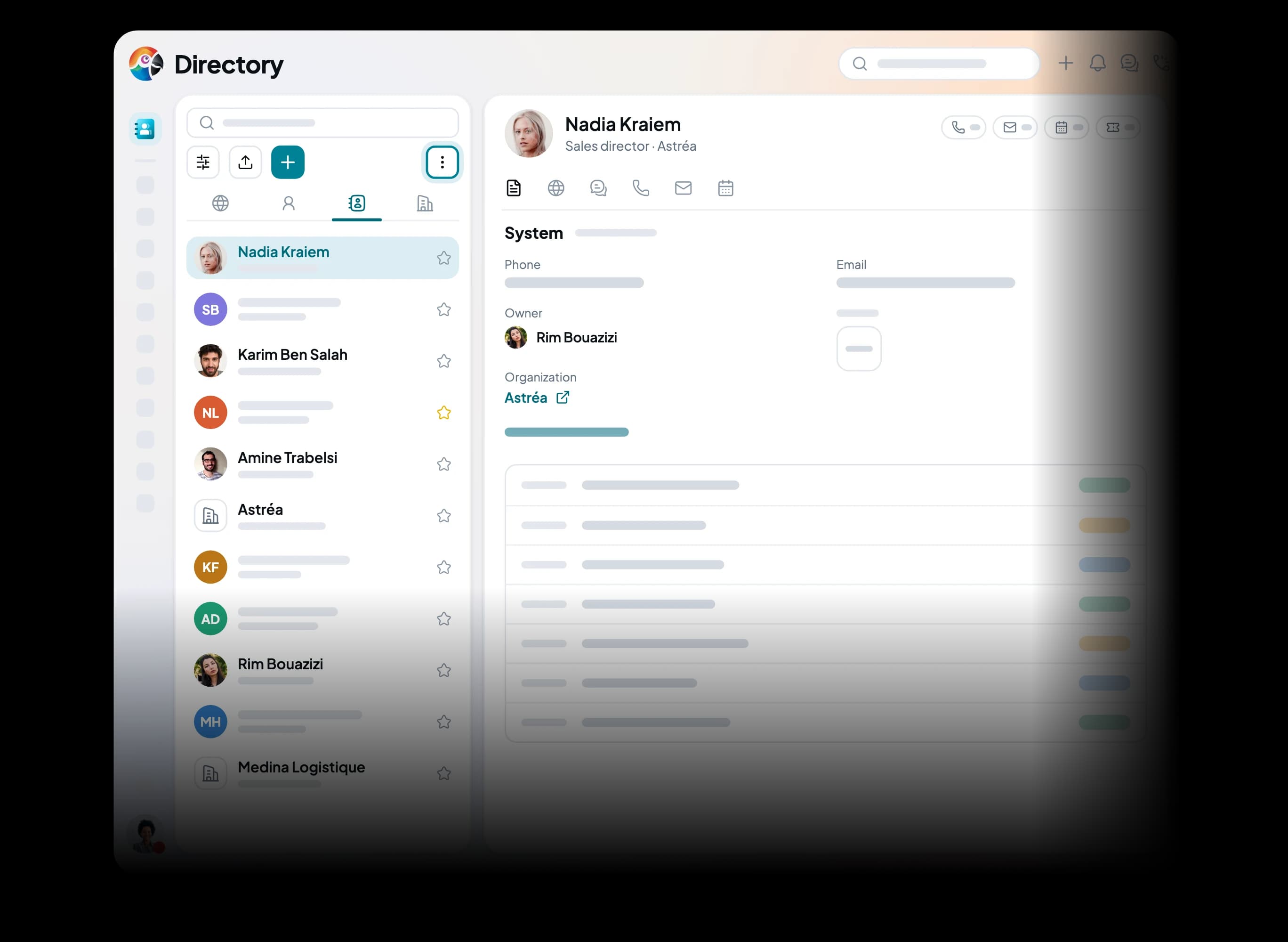
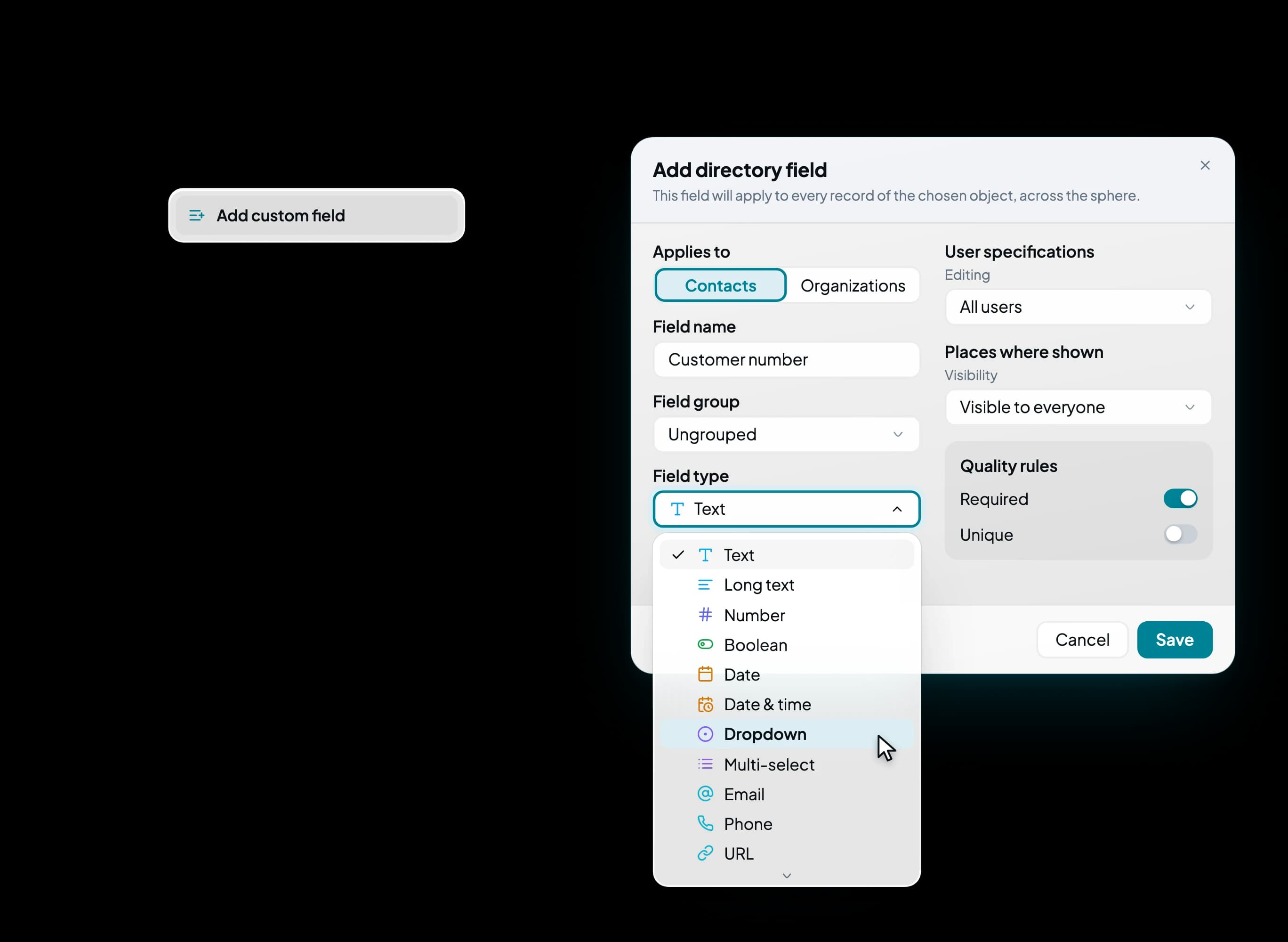
  4. The Directory, the ⋮ menu and the “Add directory field” form: a name, a field type (the list is open), Contacts or Organizations, the quality rules.

    Adapt

    The field your records are missing, created without a developer.

    Contract number, industry, customer reference: an administrator creates the field from the Directory menu, for contacts or for companies, and the whole sphere finds it. Make it required, or unique so no number is entered twice. On the record, empty fields fold away and reopen in one click.

    • Visible across the whole sphere
    • 24 field types
    • Required, or unique value
    • For contacts or companies
    • Empty fields folded on the record
    • Editable on mobile
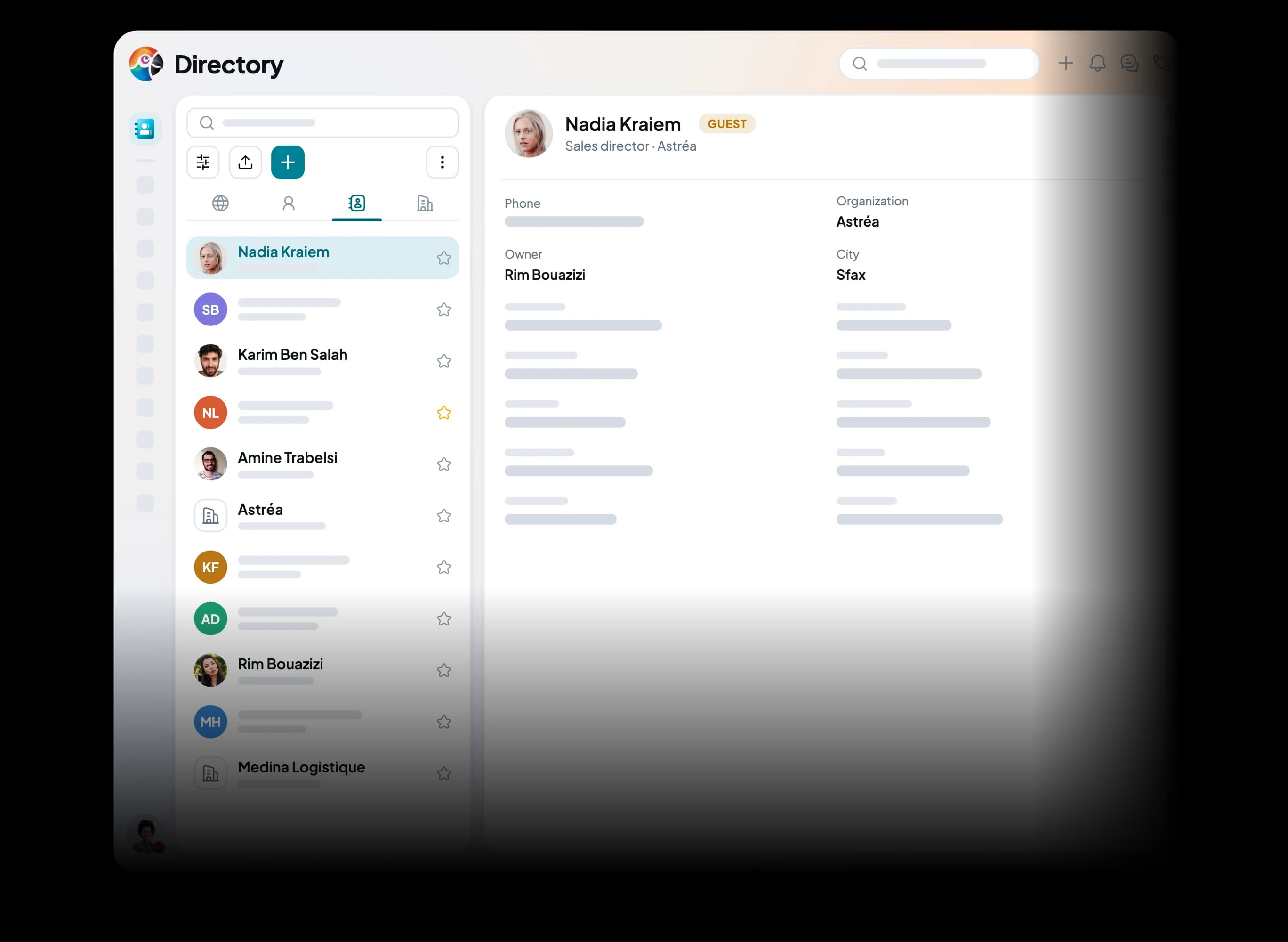
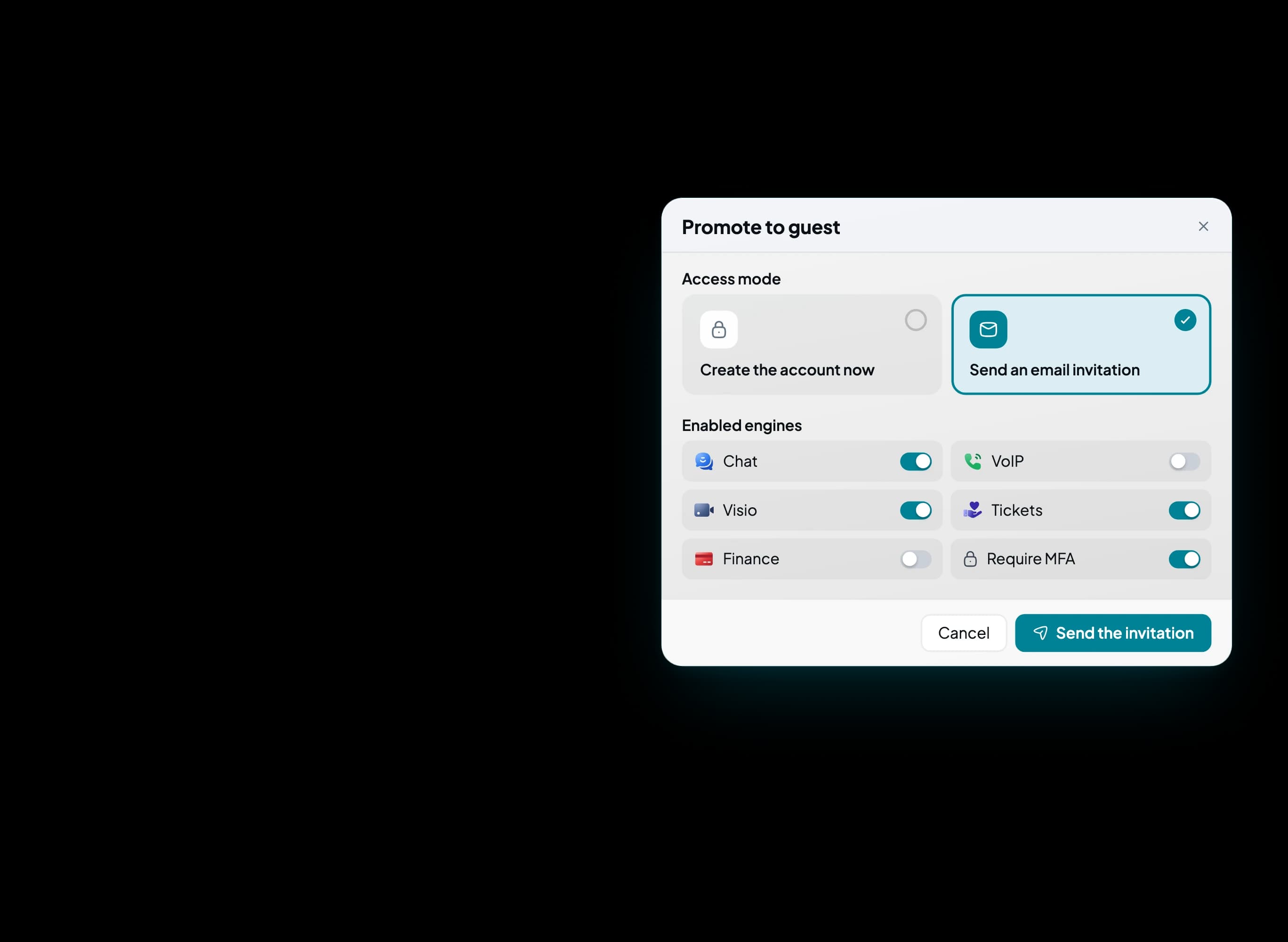
  5. A contact record tagged Guest and the Promote to guest window: email invitation, opened applications and two-factor sign-in.

    Invite

    Bring a customer into your sphere, with only the access you choose.

    Running a project with a customer or a partner? An administrator invites them from their record and picks the applications they will see: Chat, VoIP, Visio, Tickets, Finance. Two-factor sign-in can be required. The status stays visible on the record, and Administration lists every guest with the date their access ends.

    • Apps opened by choice
    • Account created right away
    • Or a 7-day invitation
    • Two-factor sign-in optional
    • Status visible on the record
    • Guests and expiry dates listed

Import

A file to import, checked before it goes in.

You drop your spreadsheet, check its columns, then read the preview before you run the import. Valid rows go into the Directory. The others stay out, each with its reason, in a file you fix and import again.

Upload

Start from the file
you already keep.

You start from an Excel, CSV or TSV file of up to 500 rows and 5 MB, taken from your computer or from the sphere's Drive. The .xlsx template carries the Directory's columns, custom fields included: fill it in as is and the mapping step is skipped.

  • Excel, CSV or TSV
  • Device or Drive
  • .xlsx template provided

No vCard (.vcf) import.

Day to day

Who's free, who's calling, where the client stands.

Your colleagues, free, away or on a call.

A segment, recalculated each time you open it.

Partners, suppliers, and everything tied to it.

The record shows where the relationship stands.

360° view

Before you pick up, you know where the customer stands.

The Sphere tab gathers on a single page everything that touches the person or the company: tickets, activities and deals, newest first. No need to jump from app to app to piece the story together.

  • One timeline

    One line per ticket, activity or deal, with its date and status. Filters by type give the count.

  • Every channel

    One tab per channel: calls, emails, meetings, comments. A call taken by the AI agent is flagged.

  • Finance and history

    The Finance tab over the period of your choice, and the record's history: who changed what, from the old value to the new one.

  • On mobile

    The same timeline follows you on mobile, in the Timeline tab. Tickets, activities and deals are gathered there, as on desktop.

Your fields

Keep the information
that matters in your business.

Contract number, industry, customer reference: add the information your business needs to track to your records, without a developer. An administrator creates the field for contacts or for companies, then decides who can see it and who can edit it. The field then appears on every record in the sphere, folded away while it is empty.

  • The same field across the sphere
  • 24 field types to choose from
  • Restricted to administrators if needed
  • Required, never left empty
  • Unique value, no duplicates
  • Readable and editable on mobile

Koukou AI

A call taken by Koukou lands on the right record.

When Koukou, the voice agent, answers for you, the call shows up in the record's Calls tab: summary, sentiment, transcript and the details it took down. A new caller gets a record.

  • Record found by number
  • Record created if the number is unknown
  • What it took down, on the record
  • Summary, sentiment, transcript
  • The assistant searches and updates your records
  • Within your rights, nothing more

Rights

Your customer data stays with whoever should have it.

The server decides what each role sees, creates, edits or deletes. On the web, a button without the right disappears instead of graying out.

  • By role, everyone sees their own scope

    View, create, edit, delete, archive: five separate permissions per role, checked record by record. The Directory can also be switched off for a role.

  • By field, what can be read and edited

    A field is editable by everyone, read-only or reserved for administrators. It can also stay invisible to members.

  • History, every change on record

    Each record shows who changed which field and when, with the old and new value. Sensitive values stay masked.

Directory

Entered once, known to every app.

A record created in the Directory is used by the other apps of the sphere. Here is what each one does with it.

Chat

Share a customer
in the conversation.

A colleague asks who the customer is? Share the record from More actions, In the chat. It arrives in the room as a card, with a View record button.

Mobile app

At the customer's, their record in your pocket.

On mobile, the Apps screen carries three applications: Teams, Contacts and Companies. They open the same screen, set to the right kind of record. Not on mobile yet: saved views, segments, field creation and archiving.

  • Pills for All, Team, Contacts, Companies, the Phone book and, for administrators, pending invitations.
  • List with search, filters, an A–Z index and an add button. The first page stays readable offline.
  • A contact's record: Call, Video, Email, Plan, More. A colleague has Message in place of Plan.
  • Nine tabs for a contact, four for a company: Information, Timeline, Relations, Recap.
  • Scanning a QR code creates a contact, and everyone has their own.

The inventory

Everything that's inside, and what's missing.

What is greyed out doesn't exist yet, or not everywhere. We would rather write it down than pass over it.

Not yet, or not everywhere

The contact list

  • Search by name, email or company
  • Search by number, when the server's search engine is on
  • All, Members, Contacts, Organizations, Favorites and Segments tabs
  • Advanced filters, conditions combined with AND
  • Saved views: private, Workspace or Sphere
  • Keyboard shortcuts: / ↑ ↓ n Esc
  • Personal favorites
  • Live presence of colleagues in the web Directory
  • OR conditions and groups of conditions
  • A sort button on the web list (it is ordered by last change)
  • Table view of records, alongside the current inbox-style list
  • Kanban view of records
  • Group the list by field
  • Edit, tag or delete several records at once
  • “Create and add another”: web only

Inside a record

  • Three kinds of record, colleague, contact and company: the same page, adapted to each
  • On every record, the Sphere tab: the timeline of every app
  • On a contact's or company's record, counters drawn from that timeline: calls, emails, activities, tickets
  • Counters on a colleague's record: it shows none today
  • Finance button in the record header: Finance is a tab, the header only has “Opportunity” under “More actions”
  • Calls, Emails, Meetings, Activities and Comments tabs
  • Finance over a period of your choice
  • Detailed history, sensitive values masked
  • Record as a drawer over another application
  • Internal notes on the record, editable by their author
  • Tags editable on the record (four at most)
  • Delete a record, with confirmation
  • Archive and unarchive: web only
  • A company's list of contacts on the web record (it exists only on mobile)
  • Relationship strength and last-contact date, calculated
  • Reminder or next action set on the record

Statistics

  • In ticket Statistics: distinct contacts, returning contacts, ranking of companies and contacts
  • In social network Statistics: identified contacts, and the share of conversations attached to a record
  • Contact and company as axes of Advanced stats, the cross analyses
  • Directory dashboard: records created per period, by source and by colleague
  • Data quality: incomplete records, likely duplicates, invalid emails and numbers, with the list to fix
  • Contacts without interaction for N days, to follow up
  • Breakdown by segment, tag, country or company
  • Ranking of contacts and companies across every application: it only exists by tickets
  • Scheduled email report on the Directory: it exists for the other domains
  • Legal basis or consent recorded on the record (GDPR)

Fields

  • 24 field types on the web, ten editable on mobile
  • Fields in groups: System, Finance, no group
  • Fields for contacts, others for organizations
  • Required field, unique-value field
  • Permission per field: editable, read-only, administrators, invisible
  • “Show N empty fields”
  • Create a field from mobile
  • Edit multiple files, amounts, durations and addresses on mobile

Artificial intelligence

  • Summary, sentiment and transcript of a call taken by Koukou, the voice agent, on the caller's record
  • A call taken by the voice agent flagged in the Calls tab
  • The voice agent finds the caller's record, or creates it if the number is unknown
  • Koukou the assistant searches, creates and edits records with the rights of the person talking to it
  • The details the voice agent took down show on the call
  • AI summary of a record's history
  • Natural-language search in the Directory: it exists in global search, not in the Directory's search bar
  • Segment created from a sentence
  • Fields filled in by AI
  • Meeting transcript and summary read on the record: the record only says they exist
  • Duplicate detection by AI

Connect

  • Call, write, start a video meeting, plan from the record
  • Share the record in Chat
  • Attach a Social conversation to a contact
  • Open a conversation with a colleague
  • Create a contact from an unknown number in the call log
  • Follow a deal from the record
  • Create a ticket from the record
  • Create a contact from an email sender, on the web
  • Contacts created automatically from incoming emails
  • Company created by pasting its website address: name, description and logo suggested (the server can do it, the screen does not call it yet)
  • Contact pre-filled from a LinkedIn or social profile: no data provider connected
  • Qualifications and Script: only with the Contact center application

Import and export

  • Import of an .xlsx, .csv or .tsv file in five steps, from your device or from Drive, 500 rows and 5 MB at most
  • Downloadable .xlsx template, rejected rows downloadable with their reason
  • Columns mapped from their header, custom fields included; the browser remembers the mapping for the next file with the same columns
  • Create, update or both; refuse the row or drop the value when a number is already taken or a value is invalid
  • Duplicates flagged on import: inside the file, a number already in the directory, a row already imported
  • Likely company duplicates spotted in the preview
  • Import a Contact center call list
  • Import history
  • Fix an unknown value once for every row that carries it
  • Filtered history: my imports, status, file name
  • Import of more than 500 rows in the background
  • CSV export of a segment
  • Full export: in Settings, reserved for administrators, no button in the Directory
  • vCard import: does not exist
  • Merging two records: doesn't exist
  • Search for duplicates already in the database
  • Capture a contact from a business card or an email signature
  • Browser extension to capture a record from a profile

Automate and connect

  • Public API on records, with limited-scope keys
  • Webhooks on record creation, update and deletion
  • External API to create and manage members and guests programmatically
  • Central tag registry in the Directory: the record keeps free-text tags

Welcoming a colleague

  • Invite by email, SMS, link or QR code, on web and mobile
  • Role and internal phone extension chosen at invitation
  • Invitation valid for 7 days by default, 30 at most; seat limit checked when sending
  • Invitation follow-up: pending, accepted, expired, revoked; resend, regenerate the link, revoke
  • Acceptance page: a password of at least 12 characters, then automatic sign-in
  • Manage a colleague: temporary password, reset link, promote or demote an administrator
  • Import colleagues from a file: 200 rows and 1 MB, web only
  • On mobile, a welcome assistant: device permissions, profile, then the “Getting started” list
  • Guided tour on the web for a colleague joining an already active sphere: only available on trial spheres
  • Create an account without an invitation: through the API only, not on screen
  • Two-factor authentication required at first sign-in
  • Mandatory change of the temporary password, on mobile
  • Edit a colleague's identity on mobile

Profile and presence

  • Status, do not disturb with a duration, working hours, planned absences, “away” after inactivity
  • Colleagues' live presence in the team list, on mobile
  • Work mode (on site or remote): mobile only

Permissions and guests

  • Directory switched off for a role
  • View, create, edit, delete, archive: separate permissions
  • Inviting a contact as a guest, status readable on the record
  • Visibility rule for the sphere's guests
  • Functional roles set app by app, in the Core's Settings
  • Create a guest from the administration: account right away, or a 7-day invitation
  • Sub-guests: a guest can invite their own colleagues, within a quota
  • Guest portal limited to the apps that are open
  • Lifetime of a guest's access
  • Invite a contact as a guest from their record, on mobile: it goes through the administration
  • Erase or anonymize a person on request (GDPR)

On mobile

  • Three applications: Teams, Contacts, Companies
  • The phone's address book in the list, with a permission prompt
  • Import a contact from the phone's address book, one at a time
  • QR code to create a contact, and your own
  • List readable offline (first page)
  • Tablet: list and record side by side
  • Saved views and segments
  • Copy a record's link: sharing sends text
  • Phone address book sync: read-only today

Questions

What we get asked before you choose.

The answers describe the product as it is today, including when they don't flatter us.

One directory, the whole team in the loop.

Colleagues, customers and companies in the same list, each record with its calls, emails and tickets. The same record opens on mobile.