












Skip to content

Thursday, September 24, 11 a.m.Sphère, what's next: the new features live, with your questions.

Save my seat

Appointments — Your clients pick their time. The right colleague takes it from there.

Appointments is the booking page of Comunik Sphere. The client picks a slot without an account, the slot is held for ten minutes, then the appointment goes to a free team member. Hosted on our cloud in Tunisia, a dedicated cloud or your own servers.

Trusted by

  • Tunisair
  • Orange
  • Ford
  • Délice Danone
  • Vistaprint
  • FedEx
  • Peugeot
  • Zara
  • Celio
  • Condor
  • Royal Air Maroc
  • Pathé

The problem

Calls to find a time. One page is enough.

Without a booking page

  • Messages go back and forth to find a time that suits both sides
  • Two clients take the same slot
  • The client does not know who will see them
  • A leave leaves appointments unanswered
  • Nobody knows whether the reminder went out
  • Contact details sit in a spreadsheet, with no end date

With Appointments

  • The client picks a time on a page, with no account
  • The slot is held for ten minutes for them alone
  • The confirmation gives the day, the time and who they will meet
  • A leave lists the affected appointments before it is saved
  • Every email sent shows up in a log, with its status
  • Contact details are erased twelve months after the appointment

Book

The client opens a page. They leave with an appointment.

The page opens from an address, no account needed. The client picks an appointment type, a day and a time in their own time zone, then leaves their details while the slot is held.

  1. The address

    Open your sphere's page.

    One address per sphere, no account. In advanced mode, several appointment types appear as cards, with their length and place: video, on site or phone.

    Not yet: choosing the language of the page, which shows in French.

  2. The right person

    Point to the right person.

    In advanced mode, a question before the slots decides who takes the appointment. The client can also pick the person: photo, title, next availability, or the first one free.

  3. The slot

    Pick a day and a time.

    The monthly calendar shows the free days and times are sorted into morning and afternoon. The time zone is detected and the client can change it.

  4. The hold

    Hold the slot for ten minutes.

    A countdown sits next to the form. If someone has just taken the time, three nearby slots are offered.

  5. The details

    Leave their details.

    Name, email, phone, up to ten questions of your choice and a consent box that is never ticked in advance.

    Not yet: a link to your privacy policy and the retention period, next to the box.

  6. The confirmation

    Get the confirmation.

    The screen shows the day, the time and the person, and the email goes out right away.

    Not yet: adding the appointment to a calendar from the screen. The email does carry the calendar invitation.

Embed

One code to paste. Booking opens on your site.

Three ways to show booking on your site: in the page, as a floating button or behind a link. Your site hears about each step the visitor takes, with no personal data.

  • A code to copy from the admin area, with a page header you can hide
  • Page viewed, slot picked, appointment confirmed: three events reach your site, with the identifier only
  • When booking is embedded, the campaign source (UTM) is kept on each appointment

Not yet: the company logo, name and welcome message on the page.

Notify

Every message goes out on time. You can check each one.

Confirmation straight away, a reminder the day before and an hour before, a follow-up a day after it ends. Emails carry a calendar invitation that updates when the appointment moves.

The confirmation, with its invitation.

The email carries a calendar invitation. When the appointment moves, the update removes the old time from the calendar.

Reminders, the day before and on the hour.

The client gets a reminder the day before and another one hour before, then a follow-up twenty-four hours after the end. The member confirms availability the day before at six in the evening and gets an alert fifteen minutes ahead.

The client manages their appointment alone.

The link in the email lets them cancel, with a reason, or reschedule, up to two hours before. It is good for thirty days and three uses.

The log of every message.

A table of sent emails: status, reason for a failure, the appointment concerned. No client address appears in it.

Not yet: editing the text and timing of reminders, sending messages by SMS. Texts and timing are set at deployment.

Assign

The appointment goes
to a free team member.

You set the rule once: fair rotation, least loaded first, or a manual priority order. Advanced mode adds appointment types, member groups and letting the client pick the person.

  • Fair rotation
  • Least loaded
  • Manual priority
  • Appointment types
  • Member groups
  • Standing guests

Types, groups and picking a person need advanced mode, which the administrator turns on in one click.

Receive

Each member sees their appointments and acts on them.

A table grouped by day or a weekly calendar, a detail panel with the form answers, a video meeting created in one click. All of it inside Sphere.

Appointments in a table grouped by day, or in a weekly calendar. Each figure for the period filters the list.

Not yet: dragging an appointment in the calendar, calling the client from a button. On mobile, the Sphere app has no Appointments screen: alerts arrive, without opening the appointment.

Welcome

Today's appointments,
in one reception queue.

The Reception screen lists today's appointments: expected, arrived, in progress, late. Mark the arrival, the member starts, and a walk-in client is entered at the desk.

  • Today's queue
  • Mark arrival
  • Start
  • Search and filters
  • Off-grid
  • Priority and urgent

Not yet: keeping emergency slots every day, setting the reception site for a type, seeing the queue move when another desk records an arrival.

Cover

A leave affects appointments. You see them before you save.

The administrator picks the rule: appointments stay with the absent member, move to a replacement or shift after their return. The client keeps their time when a colleague takes over.

  • The leave lists the affected appointments before it is saved
  • Three rules apply: keep, hand to a replacement, move after the return
  • With nobody to take over, the administrator and team leads get an alert
  • They hand the appointment on, offer the client other times or note a decision made elsewhere
  • A public holiday on an existing appointment triggers a rule and an alert, for France, Tunisia and Morocco

Not applied yet: letting the client choose (the setting is saved but has no effect), and requiring approval for a move or a cancellation.

Oversee

The team lead follows the team. Roles say who does what.

My team gathers upcoming appointments, those to take over and outcomes to record. Experts join an appointment without the client seeing them. Twenty privileges combine into roles.

My team

Four figures,
the appointments to take over.

The team lead sees at a glance what is coming, what was cancelled for a conflict and what still needs an outcome. They filter by member.

  • Upcoming, cancelled for a conflict, outcomes to record, attendance over thirty days
  • A filter by member, and the Upcoming, Past and Cancelled views
  • An appointment left without anyone to take it is flagged To take over

Connect

Calendar, video, directory: the appointment shows up in each.

A member can let their Sphere calendar block slots. The video meeting is created from the appointment. The client is recognised or added to the Directory.

Your meetings block
your slots.

Meetings, video calls and absences in the Sphere calendar remove the slot from the booking page. Each member turns the setting on themselves: it starts off.

  • Meetings and absences
  • A setting per member
  • Public holidays by country

Not yet: connecting Google Calendar or Outlook. Only the Sphere calendar is read.

Protect

Your clients give their consent. Their data has an end date.

A booking collects a name, an address and often a phone number. Here is what the service does with them.

  • A consent box, never ticked in advance, says what the data is used for.
  • The embed script uses no cookie and no third-party service.
  • Name, email and phone are erased twelve months after the appointment. The row stays for the statistics.
  • Hosted on our cloud in Tunisia, a dedicated cloud or your own servers.
Certifications

Certified ISO 27001 and ISO 9001. Check it in the register.

Check on Certipedia
  • ISO/IEC 27001:2022

    Information security

    How your data is classified, protected and returned, audited by TÜV Rheinland.

  • ISO 9001:2015

    Quality management

    Written processes, checked and reviewed: what TÜV Rheinland comes to audit.

The inventory

Everything that's inside, and what's missing.

What is in grey does not exist yet, or not everywhere (web or mobile). We would rather write it down than stay silent about it.

Not yet, or not everywhere

The booking page

  • One address per sphere, no account
  • Cards for each appointment type, with length and place (advanced mode)
  • A direct link to one appointment type
  • A question that points to the right person (advanced mode)
  • Picking the person, or the first one free (advanced mode)
  • A monthly calendar, times sorted into morning and afternoon
  • A time zone that is detected, editable and remembered
  • A slot held for ten minutes, with a countdown
  • Three fallback slots when the time has just been taken
  • Up to ten questions in the form
  • A consent box never ticked in advance
  • A page that reads on a phone, by keyboard and with a screen reader
  • Choosing the language of the page
  • Adding the appointment to a calendar from the confirmation
  • The company logo, name and welcome message
  • A link to the privacy policy and the retention period
  • Saying where an on-site appointment takes place
  • A slot list that updates live
  • A QR code and a button to share the link

Client messages and links

  • Confirmation, a reminder the day before and an hour before, a follow-up
  • Calendar invitation, updated when the appointment moves
  • Cancel in two steps, with a reason
  • Reschedule from the link in the email
  • A screen for an expired or already used link
  • Reply to a proposal: accept, other date, other person, cancel
  • Emails in French, English and Arabic
  • Sending messages by SMS
  • Editing the text, sender and timing of reminders

The member's calendar

  • A table grouped by day, or a calendar
  • Search and figures for the period
  • A detail panel: form answers, campaign source
  • The video meeting created from the appointment
  • Cancel, move, hand over to a free colleague
  • Held or no-show, in one click
  • "Still available tomorrow?" the day before
  • Follow the client's reply to a proposal
  • Adding expert guests
  • Creating an appointment on a client's behalf
  • CSV export, readable in Excel
  • Dragging an appointment in the calendar
  • Calling the client from a button
  • The Today and To do column below 1,280 px
  • Creating the video meeting automatically at booking
  • Seeing whether the client has met this member before

Availability

  • Ranges with days, hours, length, break and cap
  • Editing a range without losing appointments
  • Leaves, public holidays, a blocked day
  • The affected appointments listed before saving
  • Minimum notice, horizon, time zone, daily hours
  • The Sphere calendar blocking slots
  • Public holidays by country
  • A title shown to clients
  • Connecting Google Calendar or Outlook
  • Creating ranges for other members
  • A minimum notice of its own for each range

Reception

  • Today's queue: time, client, member, status
  • Marking a client's arrival
  • Starting the appointment
  • Search and filters by member and by site
  • Off-grid appointments, with a reason
  • Access limited to an authorised account
  • Keeping emergency slots every day
  • Setting the reception site of a type
  • Cancelling a no-show automatically
  • A queue that updates live between desks

Team and roles

  • My team: four figures, filter by member, appointments to take over
  • My interventions, for invited experts
  • Colleagues invited by default to upcoming appointments
  • Team leads
  • Twenty privileges, three starting roles
  • Links between roles: supervises, coaches, covers
  • Notifications chosen per role
  • The approval link (saved, no effect)
  • "The client chooses" for an absent member (saved, no effect)

Administration

  • Every appointment in the sphere, reassign
  • Members, team leads, experts
  • Simple mode or advanced mode
  • Assignment: fair rotation, least loaded, manual priority
  • Appointment types and member groups
  • Public holidays for France, Tunisia and Morocco
  • Public page open or closed, editable address
  • Embedding: in the page, floating button, link
  • The people shown on the page
  • Adding the client to the Directory
  • Emails sent and history
  • SMS, mandatory phone and emergency slots by type
  • Opening the page on specific dates
  • Setting the notice, the hold time and retention

Data, languages, mobile, beyond

  • Details erased twelve months after the appointment
  • Protection against bots and double clicks
  • Member screens in French, English and Arabic
  • Times in the right time zone
  • Alerts in the bell
  • Arabic right to left (never seen on screen)
  • The dark theme (never seen on screen)
  • 12-hour times for English
  • A mobile app for the team: alerts arrive, without opening the appointment
  • Webhooks to your tools
  • Group appointments
  • Payment at booking

Frequently asked questions

What we get asked before moving to Appointments.

The answers, including when they say what is still missing. Your question is not there? Ask it during the demo, on your own booking flow.

One booking page to try with your team.

The client picks a time with no account, the right colleague gets the appointment, reception follows today's queue. An application of Comunik KIT.
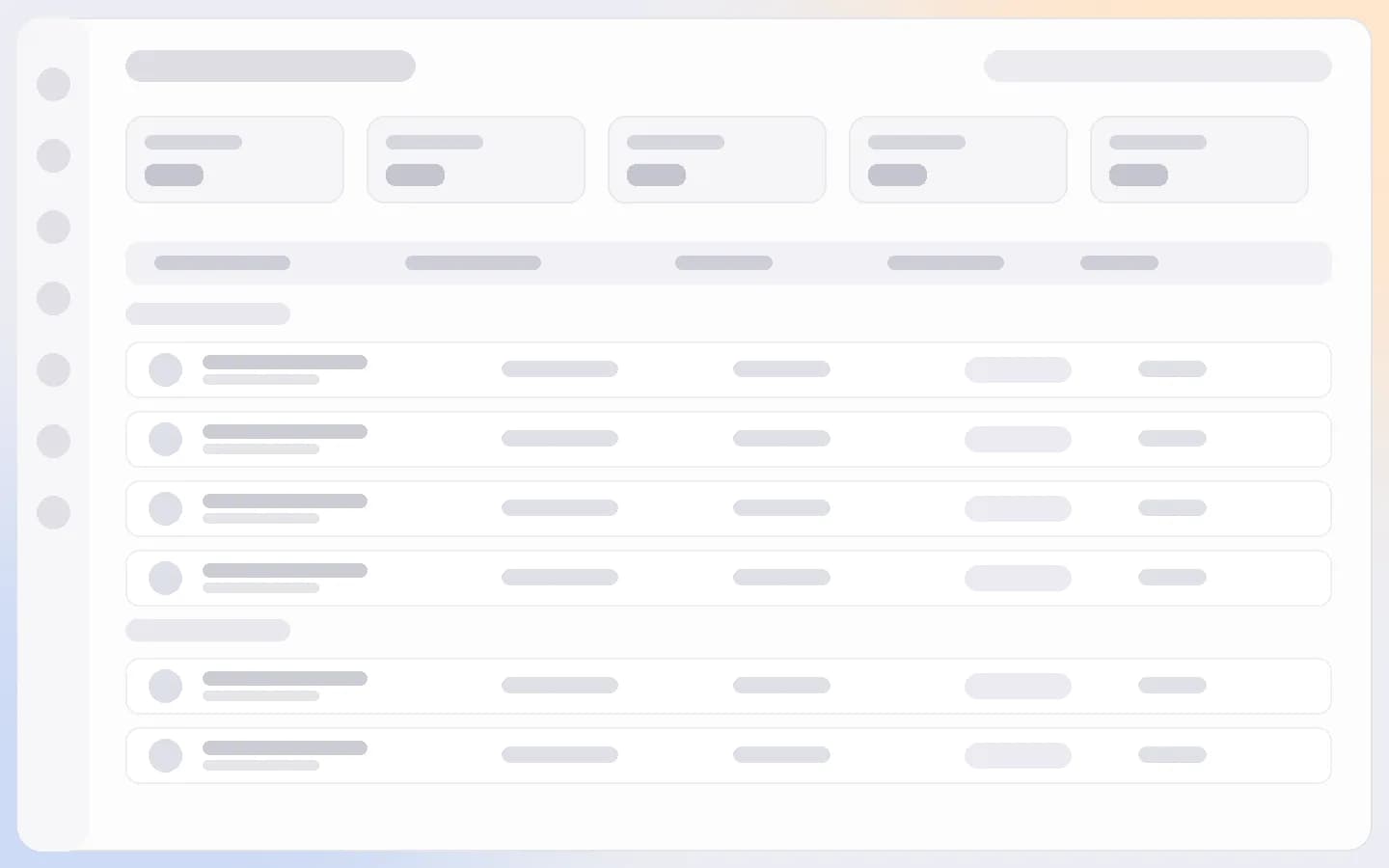
My appointments: the member's table of appointments, grouped by day, with the figures for the period.